Keyboard Shortcuts Reference
Rumour UI is built with a keyboard-first architecture. Developers can trigger executions, navigate multi-tab workspaces, toggle interface docks, traverse file trees, and manage project environments entirely from the keyboard.
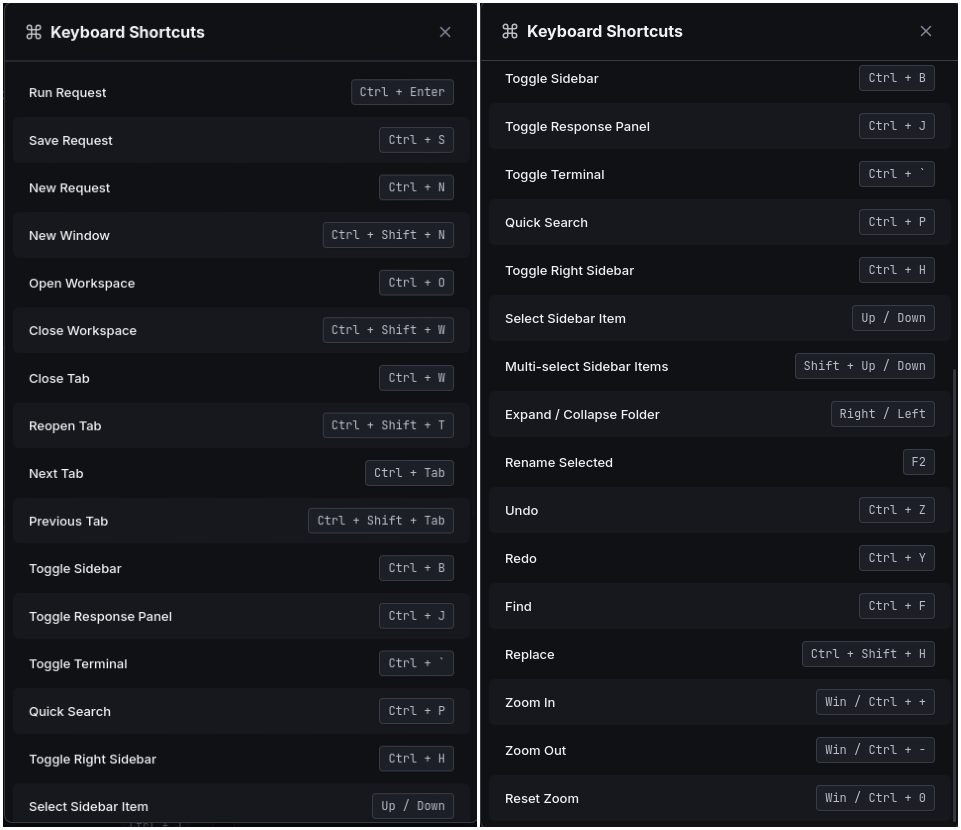
In-App Shortcut Cheat Sheet
You can access the built-in keyboard shortcut cheat sheet at any time while working in Rumour:
- Navigate to Help > Shortcuts in the top menu bar.
- The dialog renders all active platform-specific bindings in a floating reference modal. Click outside or press
Escapeto close.
Platform Modifiers
Rumour automatically maps key combinations to your operating system's standard conventions:
- macOS: Uses the Command key (
Cmd/⌘). - Windows & Linux: Uses the Control key (
Ctrl).
1. Global & Workspace Operations
High-level application commands for file lifecycle, execution, and workspace management:
| Action | macOS Shortcut | Windows / Linux Shortcut | Description |
|---|---|---|---|
| Run Active Request | Cmd + Enter | Ctrl + Enter | Executes the .toml request currently open in the active editor tab. |
| Save File | Cmd + S | Ctrl + S | Persists changes in the active request, config, or environment file to disk. |
| New Request | Cmd + N | Ctrl + N | Scaffolds a new request file in the active workspace. |
| New Window | Cmd + Shift + N | Ctrl + Shift + N | Spawns a new independent Rumour desktop application window. |
| Open Workspace | Cmd + O | Ctrl + O | Opens the native directory picker to load a workspace folder. |
| Close Workspace | Cmd + Shift + W | Ctrl + Shift + W | Unloads the current workspace and returns to the Welcome Screen. |
| Open Settings | Cmd + , | Ctrl + , | Opens the Settings editor for interface and runner configuration. |
| Exit Application | Cmd + Q | Alt + F4 | Terminates the application and background daemon processes. |
2. Panel & Layout Visibility
Quickly show, hide, or resize user interface docks without clicking toggle buttons:
| Action | macOS Shortcut | Windows / Linux Shortcut | Description |
|---|---|---|---|
| Toggle Left Sidebar | Cmd + B | Ctrl + B | Expands or collapses the left file explorer and suite tree. |
| Toggle Response Panels | Cmd + J | Ctrl + J | Expands or collapses the bottom response and test assert drawer. |
| Toggle Terminal | `Ctrl + `` | `Ctrl + `` | Shows or hides the integrated shell terminal at the bottom. |
| Toggle Right Panel | Cmd + H | Ctrl + H | Expands or collapses the Right Inspector tools (Executions, Git, History, etc.). |
| Quick Search Palette | Cmd + P | Ctrl + P | Opens the fuzzy file and request search modal across the workspace. |
| Zoom In | Cmd + + / Cmd + = | Ctrl + + / Win + + | Scales the entire user interface up for high-DPI displays. |
| Zoom Out | Cmd + - | Ctrl + - / Win + - | Scales the interface down to increase visible workspace density. |
| Reset Zoom | Cmd + 0 | Ctrl + 0 / Win + 0 | Resets application scaling to the standard 100% baseline. |
3. Tab & Workspace Buffer Controls
Effortlessly manage dozens of open requests and configuration files:
| Action | macOS Shortcut | Windows / Linux Shortcut | Description |
|---|---|---|---|
| Close Active Tab | Cmd + W | Ctrl + W | Closes the current editor tab. |
| Reopen Closed Tab | Cmd + Shift + T | Ctrl + Shift + T | Restores the most recently closed tab in its previous position. |
| Next Tab (Right) | Ctrl + Tab | Ctrl + Tab | Cycles focus to the adjacent tab to the right. |
| Previous Tab (Left) | Ctrl + Shift + Tab | Ctrl + Shift + Tab | Cycles focus to the adjacent tab to the left. |
4. Editor & Content Editing
Shortcuts active when authoring payloads, TOML scripts, or inspecting schemas in the Monaco editor:
| Action | macOS Shortcut | Windows / Linux Shortcut | Description |
|---|---|---|---|
| Undo | Cmd + Z | Ctrl + Z | Reverts the last edit in the active editor buffer. |
| Redo | Cmd + Y / Cmd + Shift + Z | Ctrl + Y | Re-applies the most recent undone edit. |
| Find in Editor | Cmd + F | Ctrl + F | Opens the find overlay inside the active Monaco editor. |
| Replace in Editor | Cmd + Shift + H | Ctrl + Shift + H | Opens the find-and-replace overlay in the Monaco editor. |
| Close Find Overlay | Escape | Escape | Dismisses search widgets and modal overlays. |
5. File Tree & Sidebar Navigation
When the Left Sidebar is focused, use standard keyboard navigation to explore project suites:
| Action | Key Binding | Description |
|---|---|---|
| Navigate Up / Down | ↑ / ↓ | Moves tree selection to the preceding or succeeding visible item. |
| Multi-Select Range | Shift + ↑ / Shift + ↓ | Extends selection across multiple contiguous files or folders. |
| Expand Directory | → | Expands a collapsed folder, or jumps to its first child item. |
| Collapse Directory | ← | Collapses an expanded folder, or jumps up to the parent directory. |
| Open Item / Toggle | Enter | Opens a selected file into an editor tab, or toggles folder expansion. |
| Rename Item | F2 | Triggers inline renaming for the selected file or folder. |
| Delete Item(s) | Delete / Cmd/Ctrl + Backspace | Opens the delete confirmation modal for all highlighted items. |
| Select All Items | Cmd + A / Ctrl + A | Selects every file and folder in the visible workspace tree. |
| Copy File / Folder | Cmd + C / Ctrl + C | Copies selected node path to the internal clipboard. |
| Cut File / Folder | Cmd + X / Ctrl + X | Marks selected node for move operation. |
| Paste Item | Cmd + V / Ctrl + V | Pastes copied/cut items into the currently selected directory. |