Source Control & Git Integration
Because Rumour workspaces operate directly on your local filesystem, version control is a native, seamless part of the interface. The Source Control panel (<GitBranch size={16} />) enables developers to inspect file changes, manage branches, stage edits, view syntax-highlighted diffs, stash work-in-progress, and sync with remote repositories like GitHub without leaving the application.
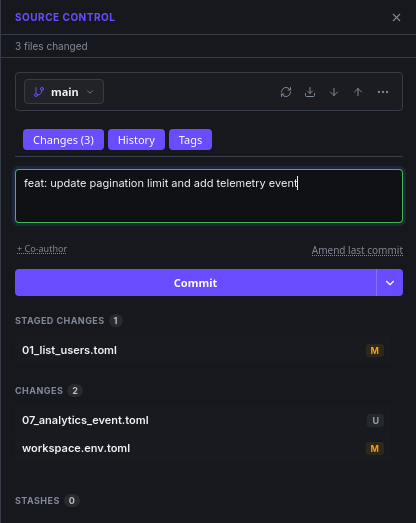
1. UI Layout & Functional Zones
The Source Control panel is organized into four main functional regions:
| Region | Component | Primary Purpose |
|---|---|---|
| Branch & Sync Bar | GitBranchSwitcher, GitSyncActions | Displays the checked-out branch, branch management menu, and ahead/behind remote sync triggers. |
| Staged Changes | GitStagedChanges | Files indexed for the next commit. Features individual unstage (-) and bulk unstage controls. |
| Changes (Working Tree) | GitUnstagedChanges | Modified, deleted, or untracked files. Features individual stage (+), discard (↺), and diff inspection. |
| Commit Console | GitCommitSection | Multi-line message input, amend toggle, and commit dispatch options. |
2. Repository Lifecycle & Initialization
If you open a directory that is not yet tracked by Git, the Source Control panel displays an uninitialized view:
- Displays "Not a Git Repository".
- Features an Initialize Repository button (
git init) to scaffold a local Git repository and create an initial commit with a single click.
3. Branch Management
The branch switcher at the top of the panel provides complete branch control:
- Current Branch Badge: Displays the active checked-out branch (e.g.
mainorfeature/user-auth). - Branch Dropdown:
- Checkout: Click any local or remote branch to switch working branches.
- Create Branch: Enter a new branch name to branch off the current
HEAD. - Rename Branch: Rename the active local branch.
- Delete Branch: Safely remove merged or obsolete local branches.
4. Remote Synchronization (Pull, Push, Fetch)
Directly beneath the branch header, the sync bar monitors repository drift against upstream remotes:
- Ahead / Behind Counters: Indicates commits waiting to be pushed (
↑ N) or pulled (↓ N). - Sync Actions:
- Pull: Fetches and merges remote changes into the working copy.
- Pull (Rebase): Rebases local commits on top of incoming remote changes to maintain linear history.
- Fetch: Queries remote branches for updates without altering local working files.
- Push: Publishes local commits to the tracked upstream remote.
5. Changes, Staging & File Badges
Changes made to .toml requests, environment files, or .rhai scripts appear in real-time under Staged Changes and Changes:
File Status Badges
| Badge | Status | Color | Description |
|---|---|---|---|
M | Modified | Blue (#3b82f6) | An existing request, schema, or configuration file was edited. |
A | Added | Green (#10b981) | A newly created .toml request or environment file staged for commit. |
D | Deleted | Red (#ef4444) | A file was removed from the local workspace directory. |
U | Untracked | Amber (#f59e0b) | A newly created file not yet tracked by Git. |
File Action Controls
| Icon / Control | Action | Scope | Description |
|---|---|---|---|
| Stage File | Single row | Moves an individual file into the staged commit index. | |
| Unstage File | Single row | Reverts a staged file back to the working tree. | |
| Discard Changes | Single row | Discards local uncommitted edits and restores file state from HEAD. | |
| Open Diff | File row | Launches the interactive Monaco Diff Modal for visual inspection. | |
| — | Add to .gitignore | Context menu | Appends the file or directory path directly to the repository's .gitignore. |
| — | Stage All / Discard All | Section header | Global action buttons to stage or discard all modified files at once. |
6. Interactive Visual Diff Modal
Clicking any modified file in either the Staged or Unstaged list opens Rumour's interactive Visual Diff Modal:
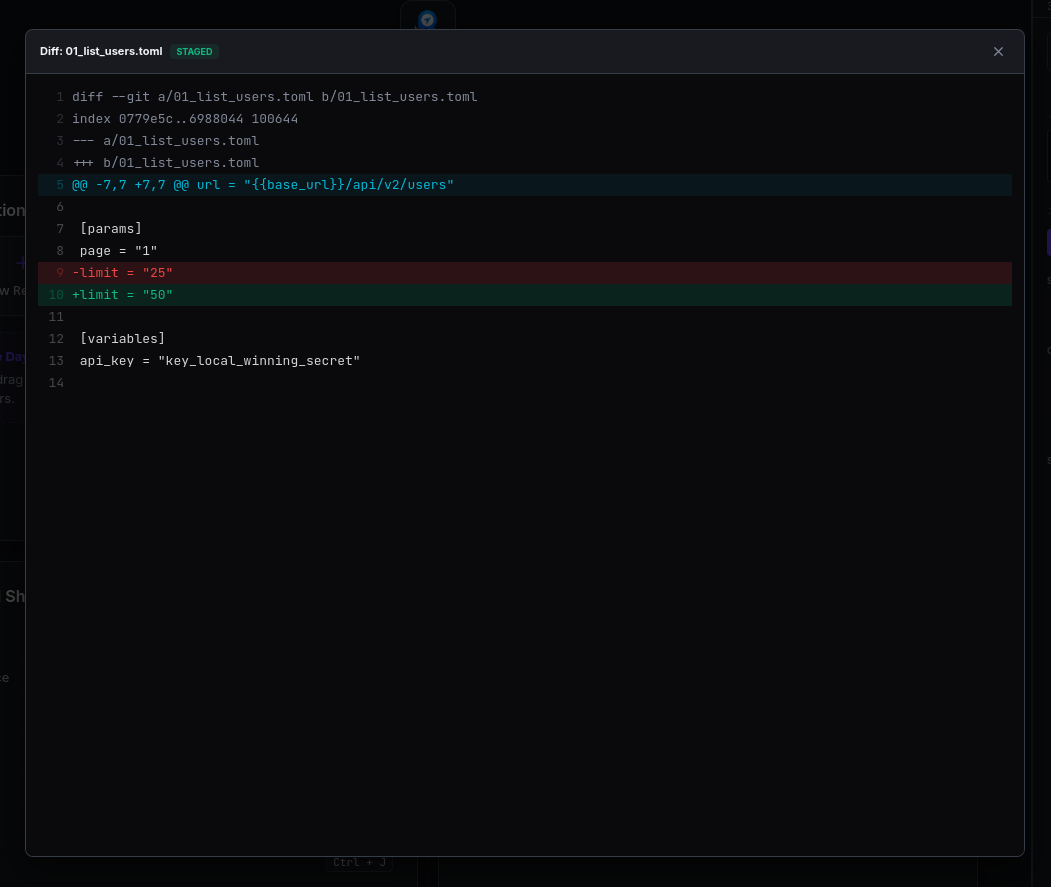
Diff Modal Features
- Color-Coded Line Highlights: Added lines are highlighted in crisp green (
+), deleted lines in red (-), and Git hunk metadata in cyan/blue (@@ ... @@). - Stage State Indicator: Header pill displays whether the diff reflects Staged changes (compared against
HEAD) or Unstaged changes (working tree vs index). - Multi-File Navigation: If multiple files are modified, use the
< PrevandNext >buttons in the modal header to navigate between diffs without closing and reopening the modal. - Escape / Outside Click: Press
Escapeor click outside the modal overlay to dismiss.
7. Commit Console & Options
- Commit Message Input: Multi-line textarea for crafting standard or conventional commit messages (
Ctrl + Enterto commit). - Amend Checkbox: When checked (
amendMode), incorporates staged changes into the most recent commit (git commit --amend). - Execution Actions:
- Commit Only: Records the commit to the local repository.
- Commit & Push: Commits changes and immediately dispatches
git pushto upstream. - Commit & Sync: Commits, pulls latest upstream changes (with automatic merge/rebase), and pushes.
8. Stashes, Tags & History
- Git Stashes: Temporarily shelve uncommitted work with named descriptions (
git stash save). Provides one-click Apply, Pop, and Drop buttons. - Git Tags Panel: Inspect release tags, create lightweight or annotated release tags, and push tags upstream.
- Git Commit Log: View recent repository commits with short hashes, author avatars, and timestamps.