Request History & Snapshots
The History tab in the Right Inspector maintains an audit trail of every HTTP, GraphQL, gRPC, WebSocket, and MQTT transaction executed during your active workspace session. It enables developers to inspect past runs, analyze historical payloads, compare network latencies, and delete or purge session logs.
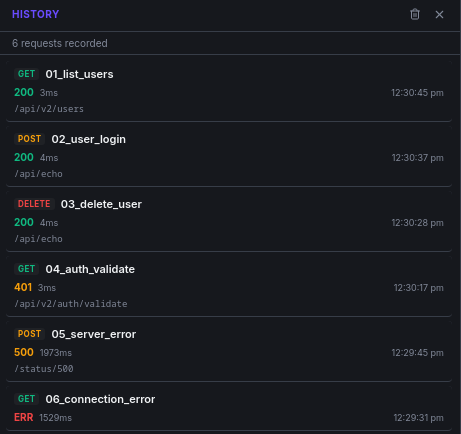
1. Execution Timeline Breakdown
Every network operation dispatched through Rumour UI records an entry in the History timeline:
History Card Attributes
- HTTP Method Tag: Color-coded indicator:
GET: Green (#10b981)POST: Amber (#f59e0b)PUT/PATCH: Blue (#3b82f6)DELETE: Red (#ef4444)QUERY: Cyan (#06b6d4)
- Request Name: Display name configured in the request's
namedirective, or the file basename. - Semantic Status Code:
2xx: Green (Success)3xx: Blue (Redirects)4xx/5xx: Red (Errors)ERR: Connection dropouts, DNS failures, or offline errors.
- Latency & Timestamp: Exact round-trip response duration (
ms) alongside execution time (HH:MM:SS). - Endpoint Route: Clean endpoint path with protocol and host stripped for easy readability.
2. Snapshot Reloading & Offline Analysis
Clicking any history entry restores its full transaction snapshot into the Bottom Response Panel:
- Captured Response Body: View formatted JSON, XML, or raw body text exactly as received at the moment of execution.
- Response Headers: Inspect wire headers, content types, rate limit remaining counters, and server cookies.
- Assertion Outcomes: Review assertion passes, failures, and expected vs actual values.
- Timing Waterfall: View latency breakdown (DNS, TCP, TLS, TTFB, transfer duration) captured during that execution.
[!TIP] Offline Verification Because snapshots preserve the raw historical response in memory, you can inspect failures, test JSONPath queries, or verify regex patterns without re-executing requests against live backend services.
3. History Management & Cleanup
Rumour provides controls for managing history entries:
- Individual Entry Deletion: Hovering over any item in the history list reveals a trash icon (). Clicking it immediately removes that record from the timeline.
- Clear Entire Workspace History: When the history contains entries, a top-level Clear History button () appears in the Right Inspector header. Clicking it purges all entries for the active workspace.
- Empty State: When no executions have occurred or after clearing history, the tab displays an empty state card ( "Run a request to see it here").